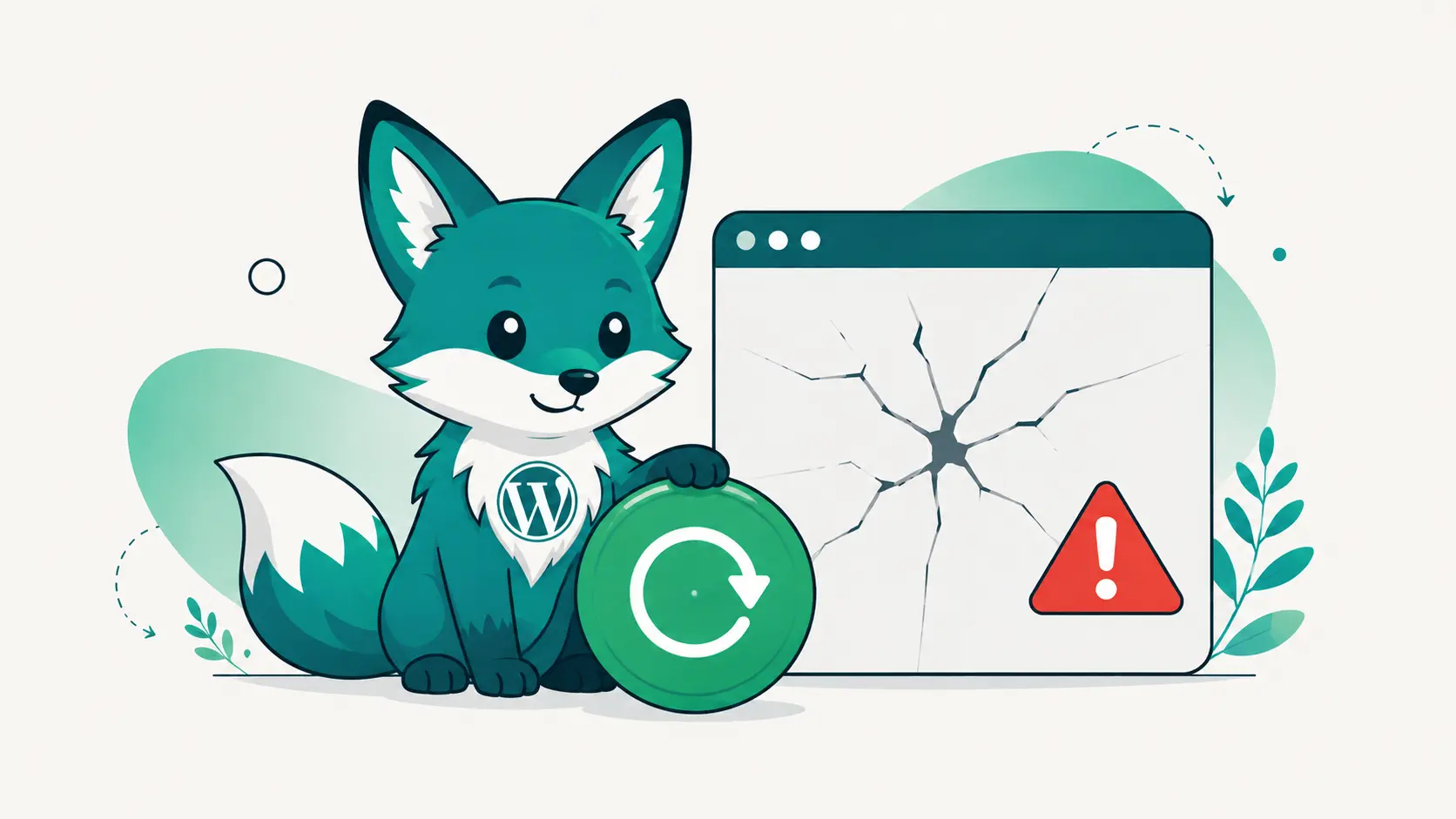
You clicked update, the progress bar finished, and the site answered with “There has been a critical error on this website”. The front end is down, wp-admin is down, and the login page is a white screen. If this is you right now: breathe. This is one of the most survivable disasters in WordPress, and panic-clicking is the only way to make it worse.
What actually happened
WordPress loads the code of every active plugin on every request, including requests to the login page. When an update introduces a fatal error (a PHP incompatibility, a conflict with another plugin, a half-finished file copy), that error takes down every page, which is why you cannot even reach the admin to undo it. The site’s data is fine. One plugin’s code is poisoning every request.
The playbook, in order
- Check for the recovery email. WordPress often detects the fatal and emails the admin address a special link that opens wp-admin in recovery mode, with the broken plugin paused. If that email arrived, use it, deactivate the plugin, done.
- No email? Disable the plugin by renaming its folder. Over FTP, SFTP or the host’s file manager, find wp-content/plugins/the-plugin and rename it to the-plugin.off. WordPress skips plugins whose folder it cannot find. The site comes back instantly, minus that plugin.
- Not sure which plugin? Rename the whole plugins folder. The site comes back bare. Rename it back, then reactivate plugins one by one until the culprit reveals itself.
- Roll back or wait. Once the site is up, either install the previous version of the broken plugin or leave it deactivated until the author ships a fix. Check the plugin’s support forum; you will rarely be the only one.
- If things are truly tangled, restore the backup. When an update half-applied or several things broke at once, restoring the backup taken before the update beats forensic surgery. This is what that backup was for.
What makes it worse
- Updating more things while the site is down, hoping something fixes it.
- Editing plugin PHP files live to “comment out the error”.
- Restoring a backup over the site without keeping a copy of the current state.
- Having no backup, no FTP credentials and no idea who the host is, all discovered now.
Next time should be a non-event
Everything above is recoverable with two preparations made in calm times: a fresh backup before every update, and a way into the site that does not depend on the site working. That second part is the interesting one.
DashboardWP was built with exactly this disaster in mind. Its connector installs a tiny rescue layer on the site that loads before regular plugins, so even when a broken plugin is fataling every request, the dashboard can still reach the site, deactivate the offender or restore the pre-update backup, wp-admin or no wp-admin. Combined with update flows that encourage a backup first, “the update broke the site” turns from an evening of FTP archaeology into two clicks and a short wait. The full recovery steps live in the restore guide.
Updates will occasionally break things; that is the cost of software that evolves. Whether that costs you five minutes or a weekend is decided long before the update runs.